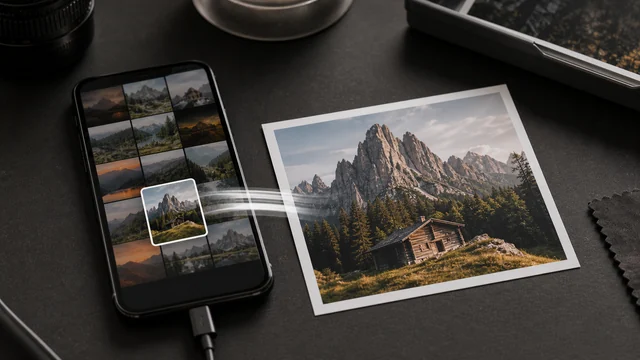
HEIC to JPG
HEIC is the iPhone's default photo format — compact, but unrecognized by many websites, Windows apps and upload forms. image cat converts HEIC / HEIF photos to universal JPG locally in your browser: no install, no upload, usable anywhere afterwards.
3 numbered images + 1 damaged file. A real processing example.
Images are processed in this tab. Download your results before closing or refreshing.
Your finished images will appear here.
Check each image, its dimensions and file size before downloading.
How to heic to jpg
- 1Drag HEIC / HEIF photos into the drop zone (several at once).
- 2(Optional) adjust output quality.
- 3Click “Convert to JPG”.
- 4Download the JPGs individually or as a ZIP.
Why use image cat's HEIC to JPG?
- Local conversion: photos never leave your device.
- Batch support: convert a whole batch of iPhone photos and download as a ZIP.
- No sign-up, no watermark, completely free.
Frequently asked questions
iOS stores photos as HEIC to save space, but Windows and many sites don't support it natively. Converting to JPG lets you open and upload anywhere.
No. image cat decodes HEIC and encodes JPG locally in your browser; photos stay on your device.
JPG is lossy but defaults to high-quality encoding, so the difference is virtually invisible. You can also tune quality to trade size against sharpness.
Updated · image cat team
Sources, review and limits
Last verified
2026-06-17
Author
Image-Cat editorial team
Reviewer
Image-Cat tooling review
Primary sources
- Browser image decoding, Canvas and download APIs
- Common social, web and device image-size presets
- User-provided images processed locally
Compression and resizing can change quality, metadata and color. Keep originals and verify output before publishing or printing.