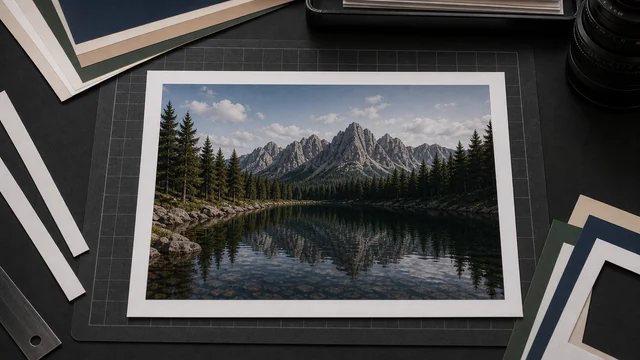
Add a border / frame to an image
Adding a border pads a solid color around an image — handy for Instagram square padding, Polaroid styling, or framing artwork. image cat adds an even border or a wider Polaroid-style bottom margin in your browser, with adjustable width and color, live preview and one-click export — all local, files never uploaded.
How to add border to image
- 1Drop an image.
- 2Choose a style: even border, or Polaroid (wider bottom margin).
- 3Adjust border width and color.
- 4Pick an output format and click “Add border & download”.
Why use image cat's Add Border to Image?
- Two styles: even on all sides, or a Polaroid bottom margin.
- Proportional width: borders look consistent across different image sizes.
- Local and private: photos stay on your device and are never uploaded.
Frequently asked questions
Yes. Use the even border, set the color to white and increase the width; pair it with the Resize tool if you need an exact square.
Yes. Pick any color with the swatch — black, white or a brand color all work.
Adding a border only pads color around the original pixels. Export PNG for lossless, or JPG/WebP for normal compression.
Updated · image cat team
Sources, review and limits
Last verified
2026-06-17
Author
Image-Cat editorial team
Reviewer
Image-Cat tooling review
Primary sources
- Browser image decoding, Canvas and download APIs
- Common social, web and device image-size presets
- User-provided images processed locally
Compression and resizing can change quality, metadata and color. Keep originals and verify output before publishing or printing.