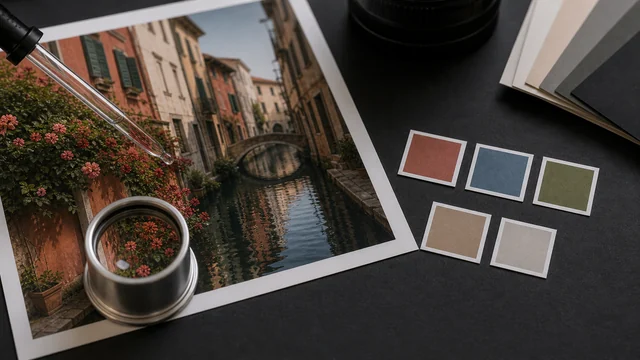
Image color picker / extract colors
Picking a color from an image reads the exact value (HEX/RGB/HSL) of a pixel — essential for design and color matching. image cat lets you sample by moving over the image, click to save swatches, and auto-extracts the image's dominant palette, with one-click copy — all local, files never uploaded.
Move over the image to sample, click to save a swatch
How to image color picker
- 1Drop an image.
- 2Move the cursor over it to read the pixel's HEX/RGB/HSL live.
- 3Click to save swatches; review the auto-extracted palette.
- 4Click any value to copy it to your clipboard.
Why use image cat's Image Color Picker?
- Three formats: HEX, RGB and HSL together — ready for design and front-end.
- Automatic palette: extract the image's dominant colors in one shot.
- Local and private: the image stays on your device and is never uploaded.
Frequently asked questions
Yes. Hover anywhere on the image to see that pixel's HEX (e.g. #3A7BD5) plus its RGB and HSL; click to copy.
Yes. After upload, image cat analyzes the image by frequency into a dominant palette; click any swatch to copy it as a color reference.
No. The image is decoded and read locally in your browser; nothing is uploaded.
Updated · image cat team
Sources, review and limits
Last verified
2026-06-17
Author
Image-Cat editorial team
Reviewer
Image-Cat tooling review
Primary sources
- Browser image decoding, Canvas and download APIs
- Common social, web and device image-size presets
- User-provided images processed locally
Compression and resizing can change quality, metadata and color. Keep originals and verify output before publishing or printing.