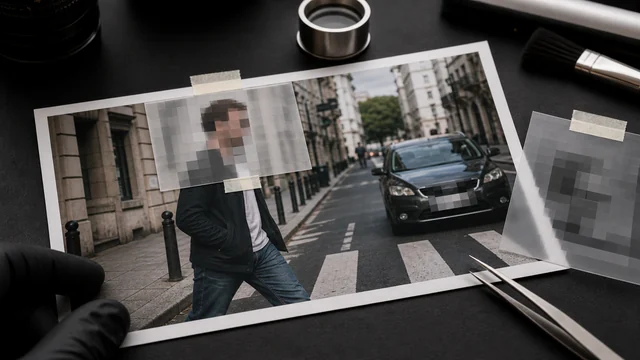
Blur or pixelate parts of an image
image cat pixelates or blurs the areas you choose, to hide faces, license plates, ID numbers or chat screenshots. Just drag boxes over the regions — multiple allowed — all local, files never uploaded, which is exactly what a censoring tool should be.
How to blur / pixelate image
- 1Drop 1 image.
- 2Drag boxes over the areas to hide (multiple allowed).
- 3Choose “Pixelate” or “Blur” and set the strength.
- 4Click “Censor & download” to save.
Why use image cat's Blur / Pixelate Image?
- Local processing: private images never leave your device — the safety a censoring tool must have.
- Multiple regions: hide several faces/plates/fields at once.
- Pixelate or blur, with adjustable strength.
Frequently asked questions
Pixelate and blur are irreversible pixel destruction; the original info isn't in the exported file. Be sure to download and use the censored version — don't share the original.
No. Censoring runs locally in your browser; images are never uploaded — essential for hiding IDs, chats and other sensitive info.
Updated · image cat team
Sources, review and limits
Last verified
2026-06-17
Author
Image-Cat editorial team
Reviewer
Image-Cat tooling review
Primary sources
- Browser image decoding, Canvas and download APIs
- Common social, web and device image-size presets
- User-provided images processed locally
Compression and resizing can change quality, metadata and color. Keep originals and verify output before publishing or printing.